
#
Preview
The Preview tab shows the web app you are building, running inside your workspace. Whatever listens on port 8080 in your workspace appears here, behind the same sign-in as the rest of the workspace. Change the code, yourself or through the agent, and the result shows up in the tab.
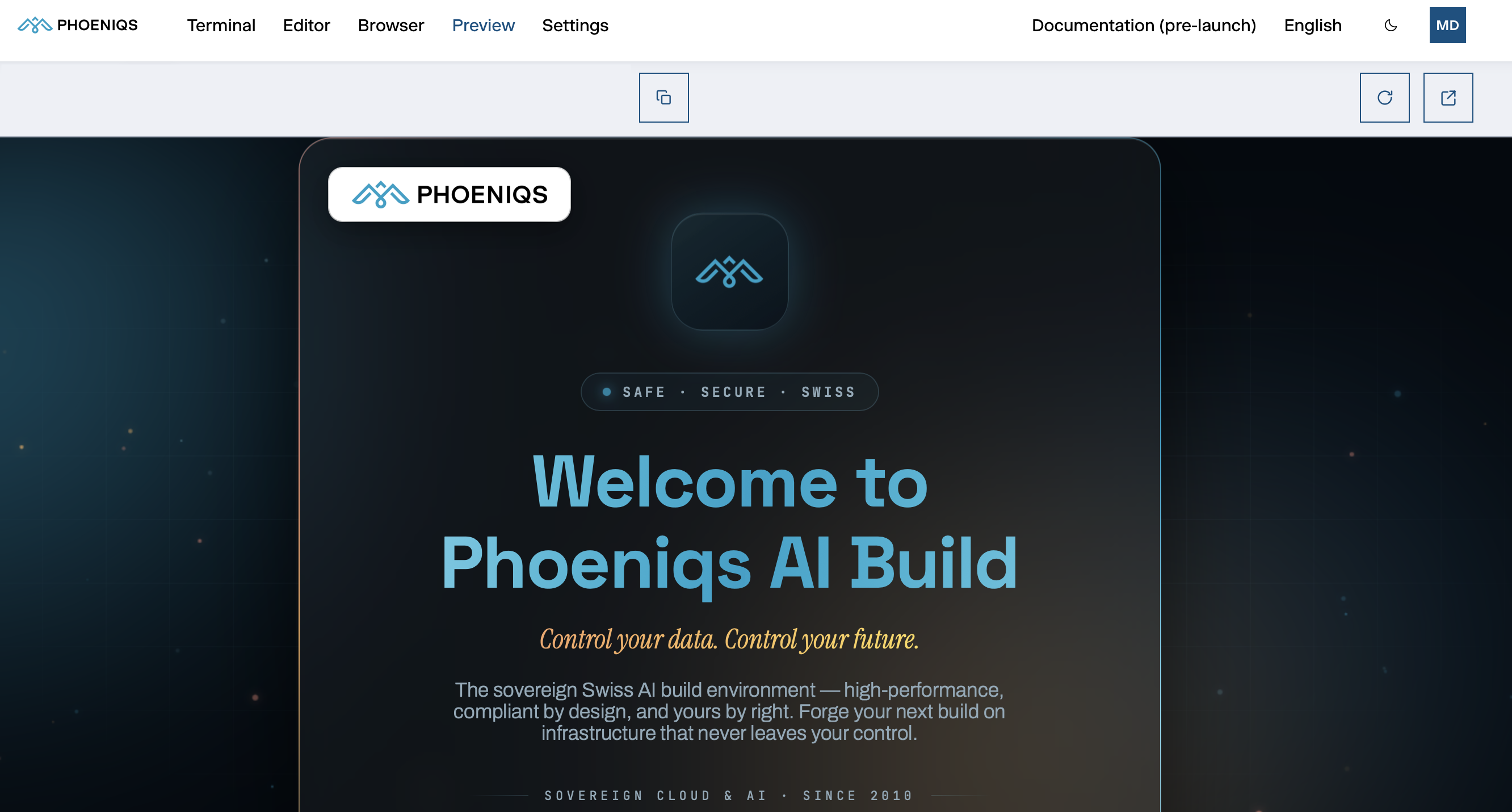 1
2
3
1
2
3
#
The toolbar
#
Start a dev server
Start your dev server on port 8080, listening on
127.0.0.1. Ask the agent to do it, or run it yourself in the Editor's terminal. For example:npm run dev -- --host 127.0.0.1 --port 8080 # or, for a folder of static files: python3 -m http.server 8080 --bind 127.0.0.1Open the Preview tab.
Until something listens on port 8080, the tab shows a placeholder that checks again every 5 seconds. Your app appears as soon as the server is up, without a manual reload.
#
How it behaves
- Live reload works. Dev servers that update the page as you save, such as Vite, webpack or Next.js, do so in the preview too.
- Links and assets work without configuration. Your app is served under
/preview/, and links in the page that start at the root, such as/assets/app.js, are rewritten to stay inside the preview. Most frameworks need no base-path setting. - The app keeps its state while you switch to other tabs and back.
- The agent can test it. The Browser runs inside the same workspace, so the agent can open your app at
localhost:8080and check it works. - One port, one preview. The port is fixed at 8080, so one app is previewed at a time. Binding to
0.0.0.0also works but exposes nothing more: the preview is the only way in from outside.
#
Security
- You are responsible for what you run in the preview. The app runs inside your workspace with your access: your credentials, the API keys available to the workspace, and your files. It also shares an origin with your workspace's own interface, so a page you preview can make requests on your behalf.
- Only run code you trust. Code from an unknown source, such as an unfamiliar dependency or script, can read the workspace's environment variables and send them elsewhere. Treat a previewed app like software you would run on your own computer.
- The risk stays within your workspace. A previewed app cannot reach another user's workspace or data. Each workspace is isolated, and the preview only reaches the dev server in your own.