
#
MCP Servers
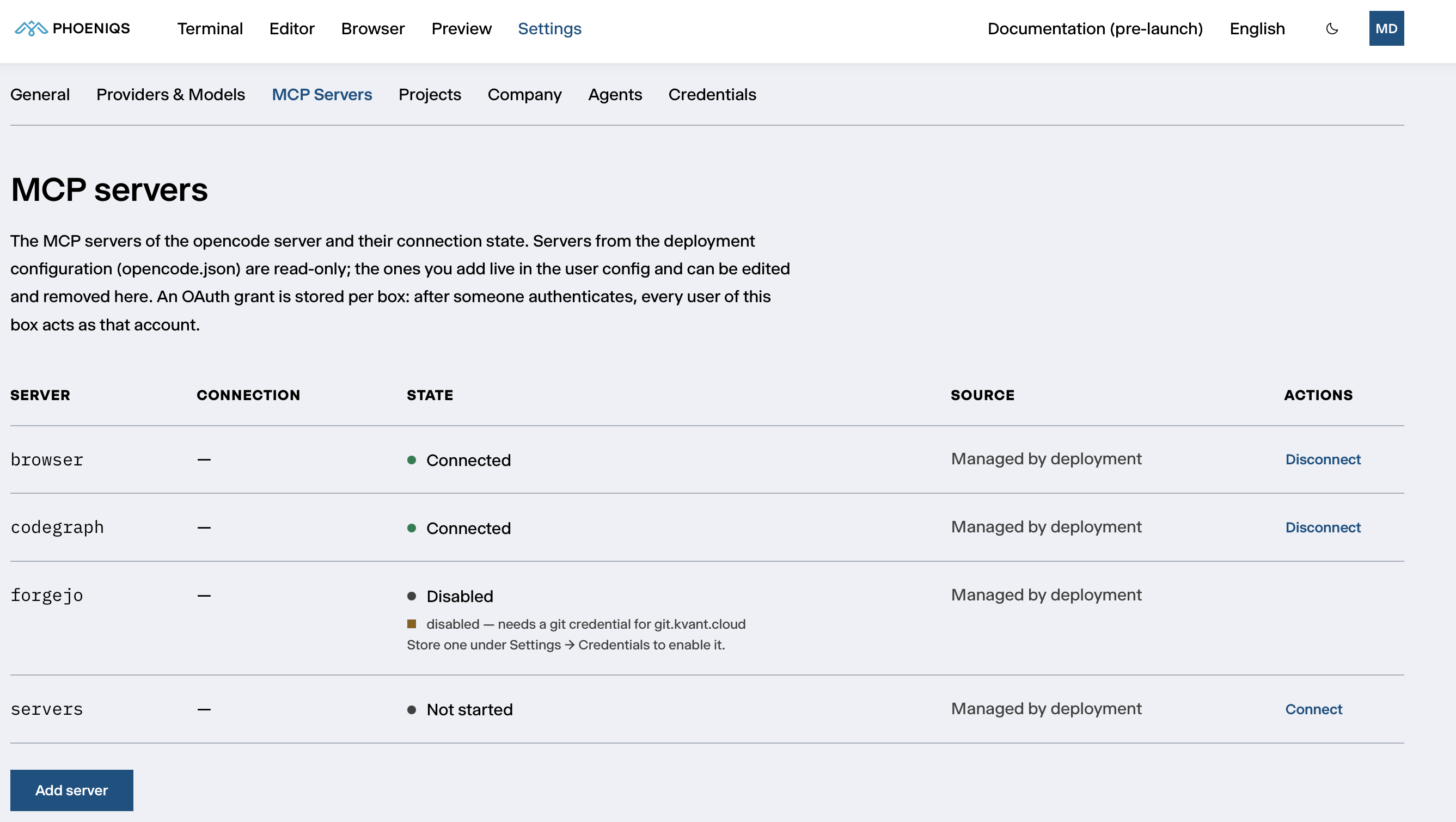
MCP servers (Model Context Protocol) give the agent its tools: driving the browser, exploring your code, working with your Git host, or anything else you connect. Settings → MCP Servers lists them with their current state.
#
The list
#
Tools every workspace has
Tools that come with the deployment cannot be changed here. To use your own key or account for one of them, see Credentials → MCP authorizations.
#
Adding a tool
- Click Add server.
- Enter a Name: lowercase letters, digits, dots and dashes.
- Choose the Type:
- Local, a program started inside your workspace. Enter its Command, and optionally a Working directory, an Environment (one
KEY=valueper line) and a Timeout in milliseconds. - Remote, a server reached over the network. Enter its Server URL. The connection uses Streamable HTTP, with SSE as fallback.
- Local, a program started inside your workspace. Enter its Command, and optionally a Working directory, an Environment (one
- For a remote server, choose its Authentication:
- No auth
- API key header: the header and the key or token to send
- OAuth: optionally a client id, client secret and scope. Without a client id, the server registers itself. There is no redirect URI to set up: the workspace receives the sign-in callback itself.
- Leave Enabled on start ticked to connect the tool whenever the workspace starts.
Changes to MCP servers apply immediately. Your tools are stored in your own settings and kept across restarts.
#
Whose account a tool uses
When you sign a tool in, the authorization is stored in the workspace, and every session uses it. Because each workspace has a single owner, that is your account. Credentials → MCP authorizations shows which identity each tool acts as.