
#
Providers & Models
Settings → Providers & Models controls which model the agent uses, and lets you add model providers beyond the PHOENIQS AI Model Service.
#
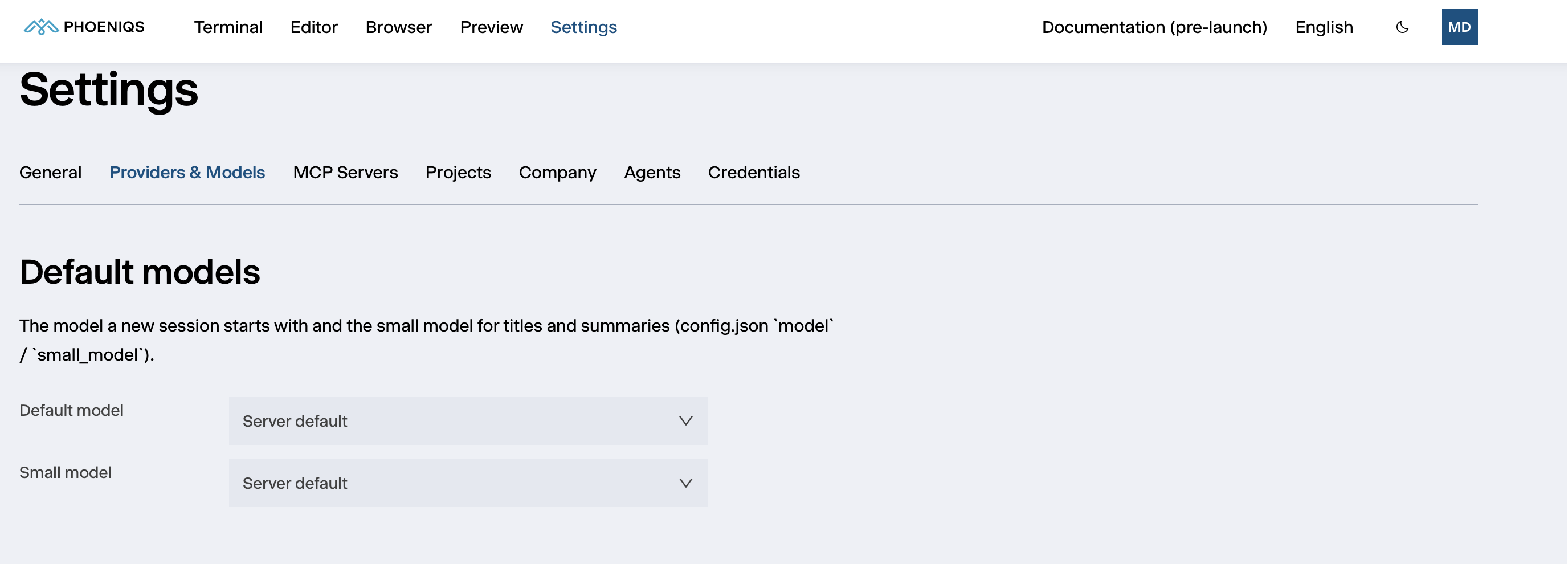
Default models
Server default keeps the model your workspace is set up with, served by the PHOENIQS AI Model Service through your Base LLM API. The Terminal shows the model in use under the prompt.
#
Providers
Every workspace comes with Phoeniqs MaaS, the PHOENIQS AI Model Service, connected with the key created when the workspace was provisioned. Providers that come with the deployment are read-only here. Providers you add are stored in your own settings, where you can edit and remove them.
#
Adding a provider
Your code goes to that provider
A provider you add receives your prompts and the code the agent sends along with them. Only the PHOENIQS AI Model Service keeps them on Swiss infrastructure under your PHOENIQS agreement. Check that an external provider is acceptable for your code before you add one.
- Click Add provider.
- Fill in the provider's details:
- Provider id and Display name
- SDK package, the library used to talk to the provider. For any OpenAI-compatible API, use
@ai-sdk/openai-compatible. - Base URL of the provider's API
- API key, optional at this point
- Save, then add the provider's models with Add model on its row. For each model, enter its Model id and Display name, its Context and Max output in tokens, its Cost for input and output in dollars per million tokens, and whether it supports Attachments, Reasoning and Tool calls.
The cost figures are what the Terminal uses to show what a session has cost so far.
The API key is never written into your settings file. It is kept in the workspace's encrypted credential store, and you can replace it later under Credentials → Provider API keys.